
Module 6 · Scale and refresh
A 10-minute daily routine with Copilot
A short daily check of your Meta ads with Copilot in AdPlay.ai: read the cards, approve or dismiss, undo when needed, plus what to review once a week.
Updated November 2026 · AdPlay.ai Team
Every morning Copilot reads your Meta ad account and lines up cards: pause an ad, change a budget, make new ads, launch. Spend 10 minutes a day reading each card, tapping its button or dismissing it, and checking what was done. Once a week, read the results of past changes, look at what works in Insights, and check your goal and cap.
Lesson 6.4 · 5 min read
Running Meta ads well is mostly small, regular decisions. Pause the ad that spends and does not sell. Give a little more to the one that does. Add fresh ads before the old ones tire. The trouble is finding time to look every day.
A short daily routine fixes that. This lesson gives you one, built around Copilot in AdPlay.ai, plus a longer check once a week.
How Copilot works
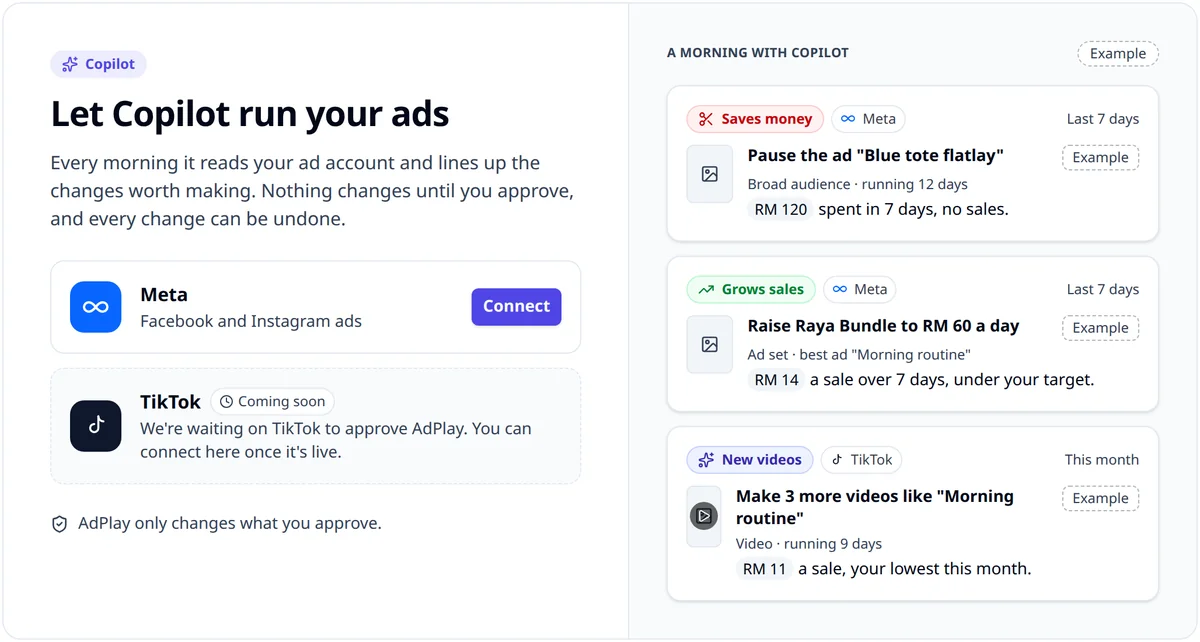
Every morning, Copilot reads your Meta ad account and lines up the changes worth making as cards. Each card has a short title, one line of evidence, and a main button that says what will happen, for example Pause ad or Raise to RM 60 a day. Bigger cards, like making or launching ads, first open large with a Review button, so you can pick the ads before you say yes. Nothing changes until you tap the final button.
Copilot also works inside fixed limits: small budget steps (20% up at most), at least 72 hours between big edits, no raise while an ad set is still in Meta's learning phase, and never past the monthly cap you set. Meta says an ad set needs about 50 results in about 7 days to leave learning, and big edits restart it. The full list is in Run your ads with Copilot.
Copilot's cards are part of Pro. To set it up, see Copilot.
The daily 10 minutes
Do this at the same time each day, for example with your morning coffee.
- Open Campaigns. The number on Campaigns in the sidebar tells you how many cards are waiting.
- Read the To do tab, top to bottom. Read the title and the evidence line of each card. If you are not sure, open Why Copilot suggests this to see the numbers behind it.
- Act or dismiss. Tap the card's button to approve it. If you do not agree, tap Dismiss and pick a reason: Not now, Wrong call or Already handled. After Wrong call, Copilot stays quiet on that change for 14 days. After Not now, for 7 days.
- Check the cost before you make ads. A card that makes new ads opens large when you tap Review. Untick any idea you do not want. The credits for the ones left show next to the make button (for example Make 3 ads), with how many credits you have.
- Look at Held back. These are changes Copilot wanted to make but a limit stopped, with the reason. Nothing changed. If your monthly cap held back a raise on an ad set that sells well, Change caps there lets you raise the cap.
- Check Done today. Every change you approved is listed. If one was a mistake, tap Undo.
- Ask one question if something looks odd. Tap Ask Copilot and ask in plain words, for example "Why did my cost per lead go up yesterday?"
That is it. Do not open Ads Manager to tweak things on top. Extra edits mix up the results and can restart learning.
A worked example
Say you run a home cleaning service in Johor Bahru. Your goal in Copilot is Leads, with a target of RM 15 per lead. These cards are made up to show how to think:
- "Pause 'Spotless in 2 hours'", with RM 61 spent and no leads this week. You tap Pause ad. The other two ads in the ad set keep running.
- "Raise Weekday Cleaning to RM 48 a day", with leads at RM 11 each, under your target. You tap the button. The budget goes from RM 40 to RM 48.
- A card to make 3 new ads for an ad set whose best ad people have seen many times. You tap Review 3 ideas, keep all three, check the credits next to Make 3 ads and tap it.
Five minutes later, you remember the pause was a mistake: that ad is for a promo starting tomorrow. You open Done today and tap Undo. Then you tap Ask Copilot and say "Don't touch the promo ad", so it goes on your Never touch list and no card comes back for it.
Once a week (30 minutes)
Pick one day, for example Monday.
- Read Activity. Once a full week of results is in after a change (about 9 days), Copilot judges it on cost per result: Helped, Hurt, No clear change or Can't tell. Undo is still there for 7 days after a change. Look for patterns. If raises on one ad set keep showing Hurt, it may already spend as much as it can at your target, so add new ads there before the next raise.
- Open Insights. Look at What works, by Ads and by Ideas. Note which ideas bring the cheapest results, and which ads show Tiring. See Insights.
- Plan fresh ads. For a winning idea, tap Make more like this to put a card in Copilot. For a tired ad, see ad fatigue.
- Check Copilot settings. Tap Settings. Under Goal and money, check your target and your monthly cap still fit this month. Under Never touch, check the list of things Copilot leaves alone. To add one, like a festive promo you manage yourself, tap Ask Copilot and say so in plain words.
- Look ahead. A sale day or a festival coming up? Raise your monthly cap before it, not on the day.
Checklist
- Same time every day, about 10 minutes.
- Every card gets a decision: its button or Dismiss.
- Check credits before you make new ads.
- Undo mistakes from Done today or Activity.
- No extra edits in Ads Manager on top.
- Once a week: Activity, Insights, settings.
Your homework
On Pro, open Campaigns and tap Settings. Check your goal, your target and your monthly cap under Goal and money. Then go through today's To do cards and act on or dismiss every one.
Frequently asked questions
Does Copilot change my ads without asking?
No. Nothing changes on Meta until you tap the button on a card, and every change it makes can be undone for 7 days from Activity.
Which plan do I need for Copilot cards?
Copilot's cards are part of Pro. On other plans, Campaigns shows a locked preview of the cards it would suggest.
What if I disagree with a card?
Tap Dismiss and pick Wrong call. Copilot will not suggest the same kind of change on that item for 14 days.
Sources
Keep exploring
Turn ad research into winning ads
See what 16,000 Malaysian brands advertise, then generate on-brand creative, all in one tool.
7-day free trial · No credit card required