
Make ads
Read the ideas board and pick ideas
What each card on the AdPlay.ai ideas board means: the idea tags, the winning ad behind it, tabs per product, More ideas, and making an idea again.
Updated November 2026 · AdPlay.ai Team
The ideas board is the Ideas step of the Ad Generator. Each card is one ad idea, most of them built on a real winning ad, with a tag that says why it should work: House style, Winning pattern, Competitor gap or Fresh angle. Tick the ideas you want and press Generate. An idea you already made can be made again with a note on what to change.
You see the ideas board after research, on the Ideas step of the Ad Generator. Use this guide to read each card, pick the right mix, and come back later for more ads from the same research.
What a card shows
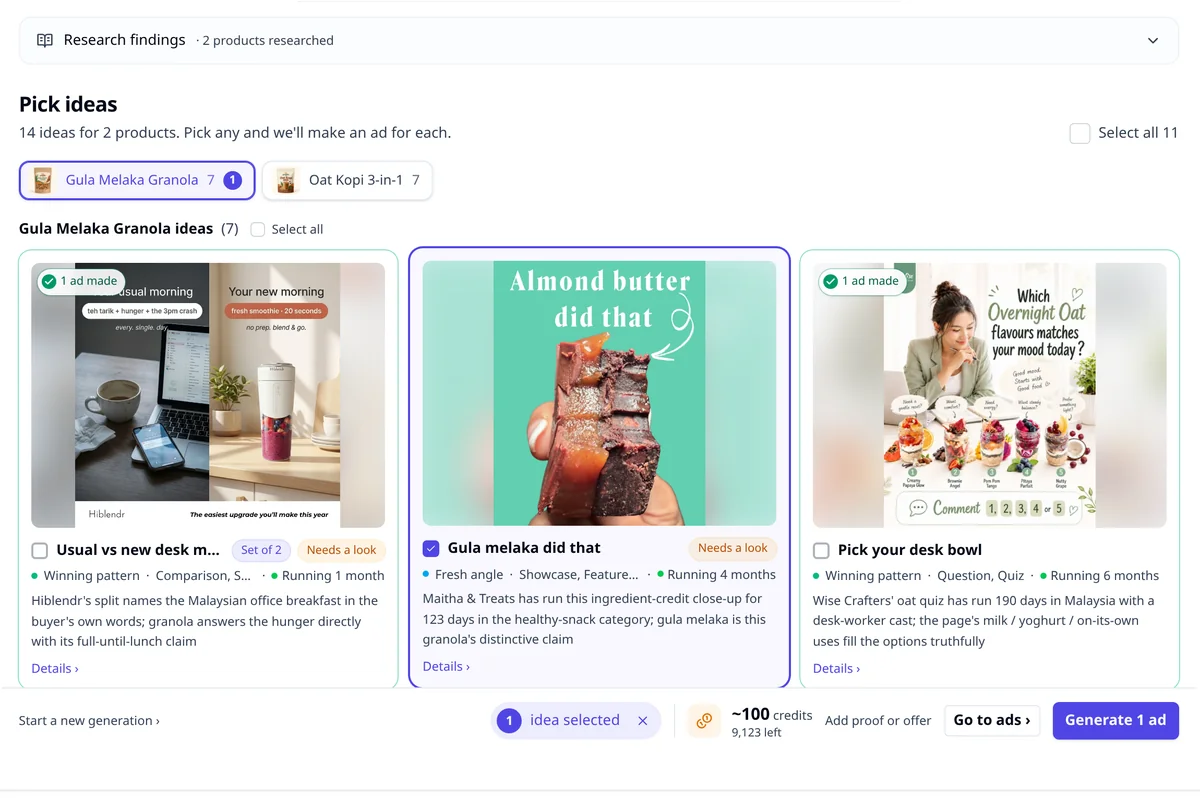
Every card is one ad idea. From top to bottom:
- The picture is the winning ad the idea is built on. Press See full size (the button on its corner) to see it larger. A card with no winning ad behind it shows "New idea by AI" instead.
- The name of the idea, with any labels beside it (see below).
- The tag line: a coloured dot with the tag, the theme of the winning ad, and how long it has run ("Running 3 months" means it is still live).
- The reason this idea fits your product, in one or two sentences.
- Details › opens the full idea.
The four idea tags
| Tag | What it means | Pick it when |
|---|---|---|
| House style | Keeps the look of your own past ads | You want new ads that look like your brand |
| Winning pattern | Follows a pattern that is already winning | You want a safe first test |
| Competitor gap | Takes an opening your competitors leave | You want to stand out from similar shops |
| Fresh angle | A new angle the research found room for | You have tested the safe ideas already |
A good first batch mixes tags. One safe idea and one different idea is a real test. Three ideas with the same tag usually teach you less.
Other labels on a card
- Set of 2 or Set of 3: the ad shows this product with your other products. See Set ads.
- 1 ad made (in green): you already made an ad from this idea. Press it to see the ads, their dates and products.
- Needs a look: a check found a problem with this idea. Read it in Details.
- Seen before: an earlier research for this product showed you a similar idea.
- Video ad: this idea makes a video ad, not an image.
Open the details
Press Details › on a card. On a computer, the window shows the winning ad on the left under Built on this winning ad, with the brand and how long it ran. On the right you see who the idea is for (For), and its Hook, Angle and Visual.
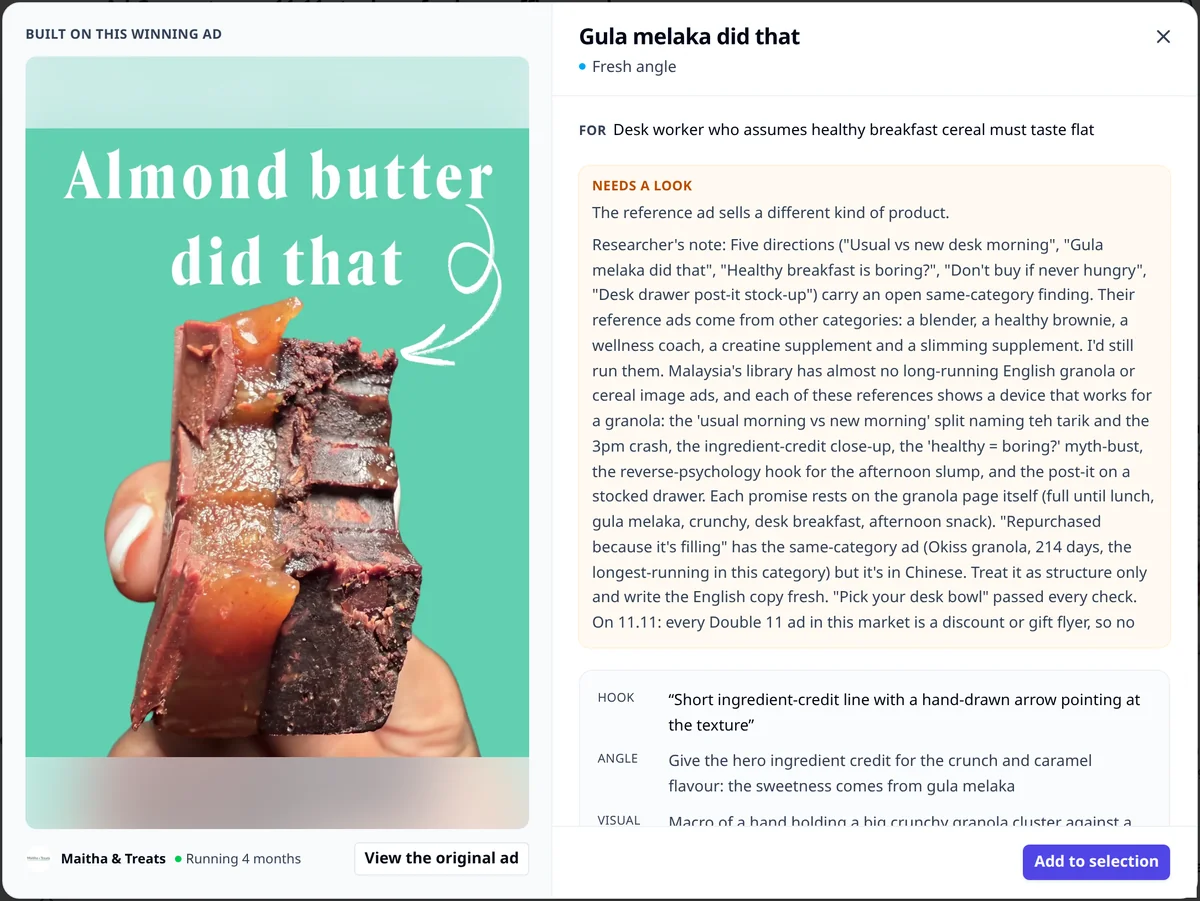
- Press View the original ad to open the full ad from the Ad Library. You can save it there.
- Press Add to selection to tick the idea. It then reads Added (tap to remove). Press it again to remove it.
Above the board, Research findings holds what the research learned about your market. It starts closed. Open it when you want the full picture.
Pick and tidy
- Tick the ideas you want. The bar at the bottom shows how many you picked and the price.
- Press the X on a card picture to hide an idea you will not use. To bring it back, press Show 1 hidden, then Unhide on the card.
- Press Select all only if you want an ad from every idea.
Tabs when you research several products
If you researched more than one product, you see one tab per product above the board. Each tab shows the product picture, its number of ideas, and how many you picked. Your picks stay when you switch tabs, so you can pick from several products and press Generate once.
Get more ideas
At the bottom of the board:
- With one product, press Research more ideas.
- With several, each tab ends with More ideas for and the product name.
The price shows under the button ("About 150 credits"). New ideas join the bottom of the board, and your picks stay. On the free trial this button is locked and says "On paid plans".
Make an idea again
An idea you made stays on the board with a green "1 ad made" label. To make another ad from it:
- Tick the idea again. The bar shows "(1 made before)".
- Press Generate. A window opens with your last ad and the date it was made.
- Under What to change, type one change, for example "make the product bigger" or "use a blue background".
- Press Generate 1 ad.
With a note, the new ad keeps your last ad's layout and changes only what you typed. Leave it empty to get a fresh picture from the same winning ad.
When you want a different market
Research settings lock once the ideas are ready. To try another market or language, press Start a new generation › at the bottom. Your current board stays in the Ad Generator list.
What to do next
If a card says Set of 2, read Set ads before you generate. To choose angles with more care, see Choose three angles.
Frequently asked questions
Why does an idea say Needs a look?
A check at the end of the research found a problem with it, for example the winning ad sells a different kind of product. Press Details to read what it found, then decide if you still want it.
Can I get more ideas without starting again?
Yes, on a paid plan. Press Research more ideas, or More ideas for a product when you researched several. New ideas join the bottom of the board and your picks stay.
What happens if I leave What to change empty?
You get a fresh picture from the same winning ad, not a copy of your last ad. Type a note, such as a bigger product, to keep the last ad's layout and change only that.
Keep exploring
Turn ad research into winning ads
See what 16,000 Malaysian brands advertise, then generate on-brand creative, all in one tool.
7-day free trial · No credit card required