
Start here
Set up your brand and products
Fill in your AdPlay.ai Brand Kit from your website or Facebook page, set your brand voice, and add the products you sell so every ad is accurate.
Updated November 2026 · AdPlay.ai Team
Paste your website or Facebook page into the Brand Kit and tap Auto-fill. It fills in your brand name, description, logo, colours and voice for you to check. Then add each product in Products & Services with Auto-fill from website. Onboarding sets up the brand only, so products are always a separate step.
Do this right after you sign up, before you make any ads. Every AI tool in AdPlay.ai reads your Brand Kit and your products. Good details give you ads that look like your brand and say true things about what you sell.
Step 1: Go through onboarding
Onboarding starts by itself after sign-up. It takes a few minutes.
- Tap Let's Start. Add Your Name and Mobile number. You can also tell us where you heard about us. Tap Continue. Your name also becomes your team name. You can change it later under Team Name in Settings, Team.
- On Start with Your Brand, paste your website or Facebook page into Website or Facebook page and tap Auto-fill. A progress bar shows each step. When it finishes, the brand fields below are filled in. Check them, then tap Continue.
- AdPlay.ai looks for competitors in your market. This takes a few seconds.
- On Add Brands to Track, tap Add on the brands under Suggested for you, or tap Add Brand to search. The trial tracks up to 5 brands. Tap Next.
- On Connect your Meta ads, tap Connect Meta to link your ad account and set a goal, or Skip for now. Nothing changes on Meta until you approve it. Connect Meta explains this step.
- Tap Go to Dashboard.
Onboarding does not add products. Do that in step 3 below.
Step 2: Check your Brand Kit
Open Brand Kit in the sidebar, under Library. Go through each field:
- Brand Name and Brand Description: what you sell and who buys it, in plain words.
- Industry: it helps the AI find relevant ads in your market.
- Market: the country your ads run in. It sets the scene and any people in your ads. Selling in more than one country? Pick No default, then choose a market each time.
- Language: new ads start in it. You can pick English, Bahasa Melayu, or Chinese in Simplified or Traditional script.
- Brand Voice: how your brand sounds. Tap a preset (Friendly, Confident, Premium, Playful or Expert), or write your own in two or three short lines.
- Horizontal Logos: a wide logo with a transparent background works best.
- Brand Colors: the colours your ads should use.
- Match your existing ad style: paste your Facebook page and tap Link Facebook page. The AI studies the ads you already run to match their look and tone. If Auto-fill found your page from your website, it is linked already.
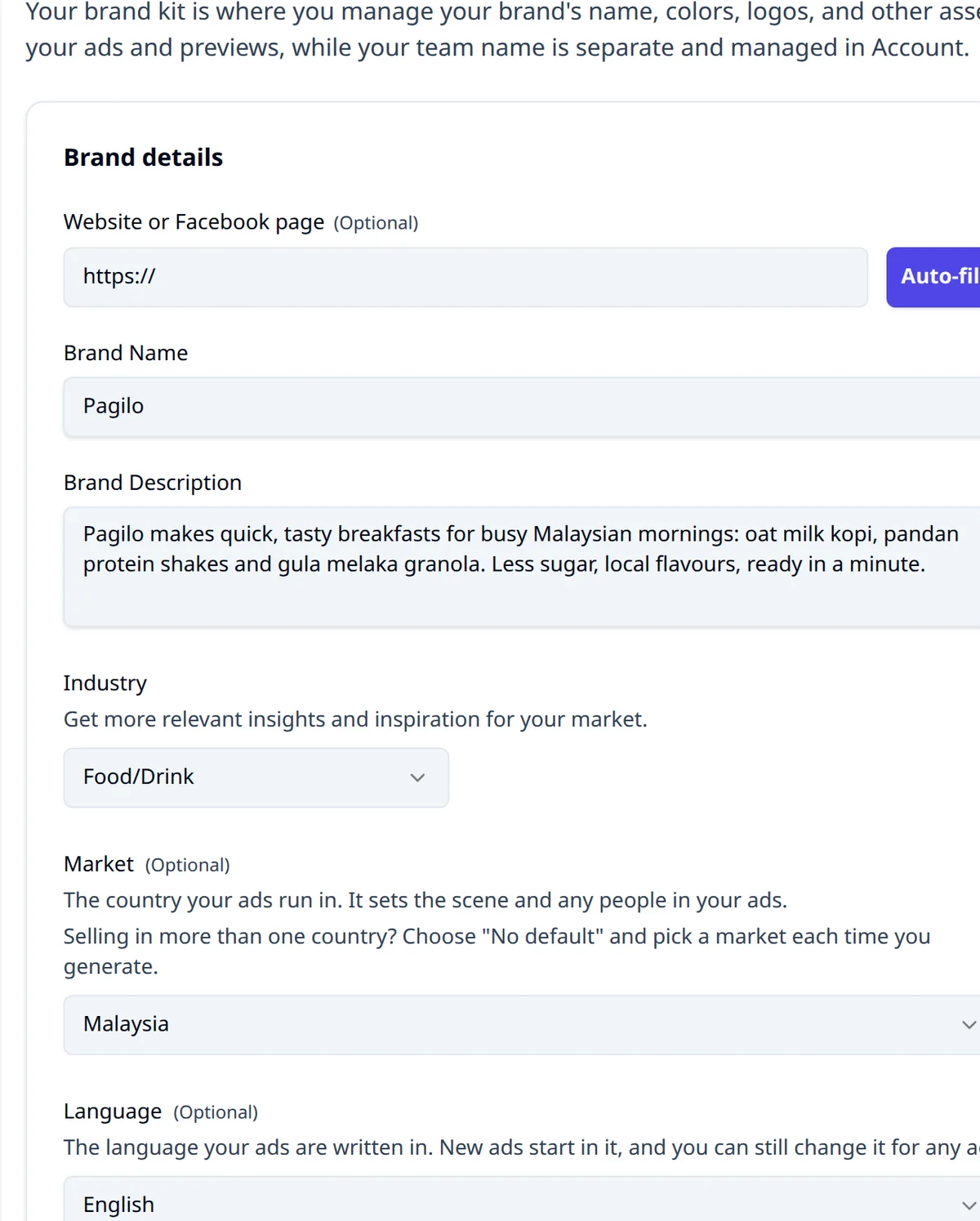
Tap Save when you are done. You can run Auto-fill again later from this page.
Step 3: Add your products
- Open Products & Services and tap Add product or service.
- Paste the product's page into Website URL and tap Auto-fill from website. AdPlay.ai reads the page and fills in the name, details, prices, ratings, reviews and photos it finds.
- Pick a Type: Physical product or Software or service.
- Read Product or service details. Describe it in your own words: what it is, who it is for and what it does.
- Check the rows for price, offer, rating, reviews, benefits and claims. Remove anything that is not true or no longer current.
- Under Images, keep the best photos and add more angles. Add a Photo in a hand so your ads show the real size.
- Tap Save product or service.
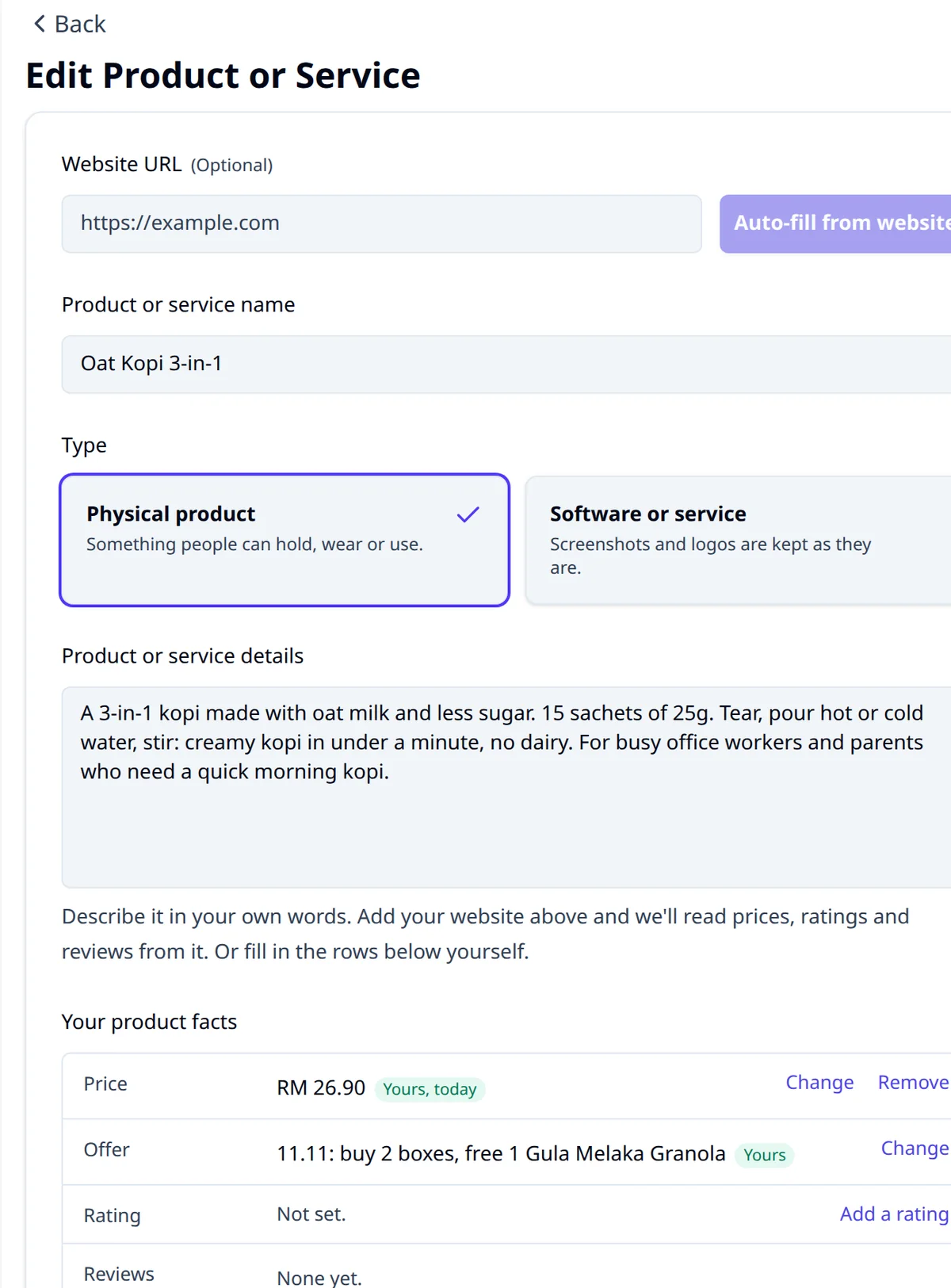
Repeat for each product you want to advertise. For a product saved from your own website, Refresh (or Read now) reads its prices, ratings and reviews again.
Common mistakes
- Pasting a marketplace shop link into the Brand Kit. Auto-fill refuses it. Use your own website or Facebook page, or fill in the brand details by hand.
- Old prices and ended promos. The AI writes from what you saved. Update the price before a sale like Raya or 11.11.
- Too few photos. One blurry photo gives weak ads. Add clear photos from a few angles.
- A second brand in the same team. One team has one Brand Kit. For another brand, create a new team. See Teams and sharing.
- Skipping the voice. Without one, the copy can sound like any other brand. A preset takes one tap.
What to do next
Your brand and first product are ready. Now make your first image ads.
Frequently asked questions
Does onboarding add my products?
No. Onboarding sets up your brand, the brands you track and your Meta connection. Add products yourself in Products & Services, or with Add new product in the Ad Generator.
My shop has no website. What do I paste?
Paste your Facebook page into the Brand Kit and tap Auto-fill. Auto-fill does not accept a marketplace shop link. For products, paste the product's own page if it has one, or type the details yourself and upload your own photos.
Can I set up two brands?
Each team has one Brand Kit. For a second brand, create a second team in Settings, Team, New sub-team. Starter includes 1 team, Pro 3 and Agency 10.
Does Auto-fill cost credits?
Yes, a small amount. Auto-fill reads your page with AI, and that uses credits from your balance.
Keep exploring
Turn ad research into winning ads
See what 16,000 Malaysian brands advertise, then generate on-brand creative, all in one tool.
7-day free trial · No credit card required