
Research your market
Track competitors with Brand Tracker
Follow competitor brands in AdPlay.ai: add them to Brand Tracker, group them in collections, read each brand page and keep their best ads in Saved Ads.
Updated November 2026 · AdPlay.ai Team
Brand Tracker in AdPlay.ai follows the brands you choose and puts all their ads in one place. Each brand page shows its active ads, new ads in the last 14 days, top hooks, headlines and landing pages. Save the ads worth keeping into Saved Ads folders, so you can reuse them as references later.
Use Brand Tracker when you know who you compete with and want to watch them over time. Instead of searching for each brand every week, you follow them once and their ads come to one page. Pair it with Saved Ads, your own folder of ads worth copying.
Add brands to track
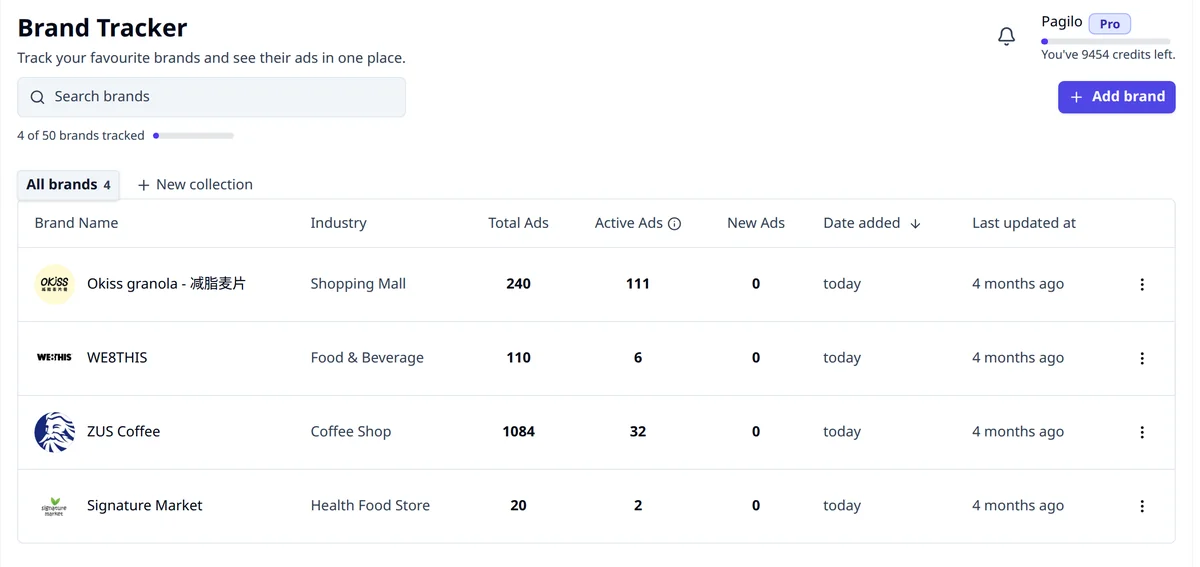
- Click Brand Tracker under Research in the sidebar. If you follow any brands, you see them in a table with Total Ads, Active Ads and New Ads (ads started in the last 14 days) for each one.
- Click Add brand. The Browse Brands window opens.
- Type the brand's name. When it shows, click Follow Brand. The button changes to Following.
- If the brand is not there, click Request New Brand. Paste the brand's Facebook page link in Facebook Page URL and click Request. If you have a free slot, the brand is added to your tracked brands. Its ads show in about 10 to 15 minutes.
You can also follow a brand from any ad in the Ad Library: open the ad and click Follow Brand. Or ask AdGPT to track a brand for you.
Each plan tracks a set number of brands, shared across all your teams:
| Plan | Brands you can track |
|---|---|
| Free trial | 5 |
| Starter | 5 |
| Pro | 50 |
| Agency | 200 |
When you reach the limit, Add brand is greyed out. Remove a brand, or see the plans.
Group brands in collections
Collections keep a long list easy to read. For example, a bakery in Penang might keep "Cake shops nearby", "Big bakery chains" and "Brands I admire".
- Above the table, click New collection. Give it a name and click Create.
- On a brand's row, open the menu and choose Add to collection.
- Click a collection's tab to see only those brands. Click All brands to see them all again.
Use the menu on a collection's tab to rename or delete it. To sort the list, click the Brand Name, Date added or Last updated at column heading. On a phone, use Sort by instead.
Read a brand page
Click a brand to open its page. At the top you see how many Active Ads it has and when it was last updated. Share copies the page link for your team, and View on Facebook opens the brand's page.
The tabs show how the brand advertises:
- Overview: new ads in the last 14 days, how many landing pages the ads lead to, and its media mix.
- Hooks, Ad Copy and Headlines: the opening lines and words it uses most.
- Landing Pages: where its ads send people.
- Media Mix: how many of its ads are images, videos or carousels.
Click a hook, headline or landing page in a tab to see only the ads that use it.
Below the tabs are all the brand's ads, with the same search, Add Filter and sort as the Ad Library. Sort by Longest Running and filter Active Status to Live to see the ads it keeps paying for.
Keep the best ads in Saved Ads
- Open any ad and click Save ad. Pick a folder, or Uncategorized if you will sort it later.
- Click Saved Ads in the sidebar to see everything you saved.
- Click Create Folder to make a folder, such as "Raya ideas", "Testimonial ads" or "Free delivery offers".
- To move an ad, right-click it and choose Move to. To move many, select them and click Move to folder.
- Search with Search brand or ad text, filter with the same filters as the Ad Library, and sort them, for example by Recently Saved or Longest Running.
Saved ads are references, not just a collection. Open one and click Create similar image ad to make your version, or ask AdGPT to use your saved ads as the starting point.
A simple weekly routine
- In the Ad Library, switch to Tracked brands and sort by Recently Started. This shows what your competitors launched this week.
- Open the brand pages with the highest New Ads count. Many new ads at once means the brand is trying something new, so look at what changed.
- Save two or three ads worth learning from into a folder.
- Pick one and make your own version.
Your Home page in the app also shows up to 6 of your tracked brands, so you can jump to them quickly.
Next
Turn a saved ad into your own with Copy a winning ad.
Frequently asked questions
How many brands can I track?
The free trial and Starter track 5 brands, Pro tracks 50 and Agency tracks 200. The limit is shared across all the teams on your account. Remove a brand you no longer need to free a slot.
Why does a brand show fewer ads than on Facebook?
AdPlay.ai counts each ad once, even when Meta lists copies of it. Each refresh collects up to 500 active ads, and Active Ads counts only live ads that started in the last 12 months. So big brands can show fewer ads than on Meta.
Can my team see the brands I track and the ads I save?
Yes. Tracked brands and Saved Ads belong to the team, so everyone in the team works from the same list and the same folders.
Keep exploring
Turn ad research into winning ads
See what 16,000 Malaysian brands advertise, then generate on-brand creative, all in one tool.
7-day free trial · No credit card required