
Work as a team
Invite your team and share ads for review
Invite teammates to AdPlay.ai, pick the right role for each, add a second business as a sub-team, and send an ad a client can approve without signing in.
Updated November 2026 · AdPlay.ai Team
Invite people in Settings, on the Team tab: type their email, pick a role (Admin, Ad Manager or Member) and tap Invite. Each team holds one brand kit, so a second business gets its own sub-team. To get an ad approved by someone outside AdPlay.ai, open the ad, tap Share and turn on Share for review. They can comment, approve or ask for changes without signing in.
Use this page when more than one person works on your ads, or when someone outside AdPlay.ai has to say yes before an ad goes live. A shop owner with a part-time marketer starts here. So does an agency with three clients.
How teams work
A team holds one brand: its Brand Kit, its products, its ads and its people. Everyone on the team works on the same brand and uses the same credits. You switch teams from the menu at the bottom of the sidebar, where your team name and email show.
Invite someone
- Open the menu at the bottom of the sidebar and pick Settings.
- Open the Team tab. The Members card lists everyone on the team.
- Under Invite member by email, type their email address.
- Pick a role in the list next to it: Admin, Ad Manager or Member.
- Tap Invite. They show in the list as Invited until they accept.
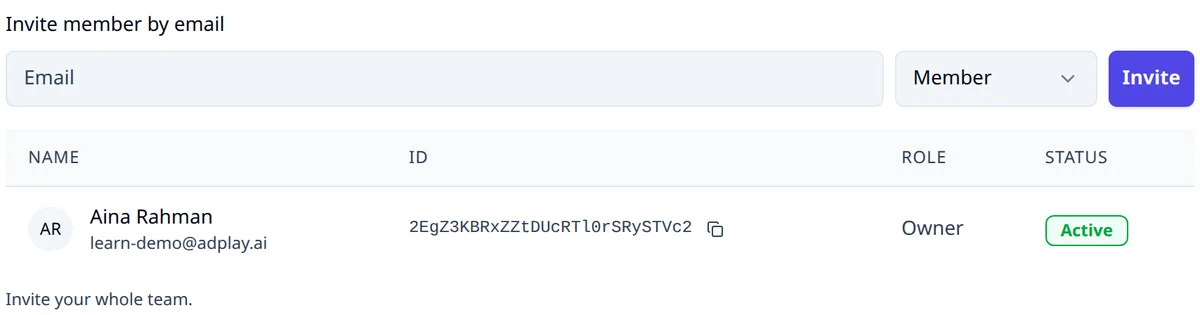
They get an email called "Join (your team) on AdPlay.ai" with an Accept Invitation button. Once they accept, their row shows Active.
There is a faster way too. In the sidebar menu, point at your team name under Teams and pick Invite team member. Type the email, pick a Role and tap Send invite. The window also lists who is already on the team.
Only the Owner and Admins can invite. Anyone else sees "Ask your team owner or admin to invite them." in that window.
Pick the right role
| Role | What they can do |
|---|---|
| Owner | Everything, including the plan and billing. A team has one Owner, who can hand the team over with Change owner. |
| Admin | Manage members, make ads and launch campaigns. Can also change the plan and buy credits. |
| Ad Manager | Make ads and launch campaigns. Can connect the team's Meta ad account. |
| Member | Make ads and view campaigns. Cannot launch. |
To change a role later (Owner or Admin only), go to the Members card, click the role next to a person's name, pick the new one and tap Confirm.
A freelancer who only designs your ads is a Member. The person who spends your budget on Meta is an Ad Manager.
Add a second business as a sub-team
One team holds one brand kit. If you sell under two names, say a bakery and a catering business, or you run ads for clients, give each business its own sub-team. A sub-team has its own brand kit, ads and members. It shares the main team's billing, credits, seats and storage.
Starter includes 1 team, Pro includes 3 and Agency includes 10. Agency can add more for RM 99 (US$25) a month each. The free trial has 1 team.
- As the Owner of your main team, open Settings and the Team tab.
- In the Sub-teams card, tap New sub-team.
- Type the Sub-team name and tap Create.
- Click the new sub-team's row and invite people there. A new sub-team starts with only you in it.
- Switch to it from the sidebar menu, under Teams. Then fill in its Brand Kit (see Set up your brand).
If your plan includes more than one team and you see no Sub-teams card, send us a message.
Share an ad for review
- Open the ad from Ads.
- Tap Share at the top of the ad page. On a phone, if you don't see it, look in the More menu (the three dots).
- Turn on Share for review. Anyone with the link can view, comment and approve.
- Tap Copy and send the link by WhatsApp or email.
- Your reviewer types their name, writes feedback and taps Approve or Request changes.
Their feedback shows in the ad's Comments, and the person who made the ad gets a notification.
Only the person who made the ad, or a team Owner or Admin, can turn the link on or off. Turning it off stops the link. Create a new link stops every link you sent before, which helps when a link went to the wrong chat.
Share with people on your team
The same Share window has a Team collaboration part. Pick a team member and tap Add to give one person the ad. Or set Everyone in your team to Can edit. The ad then shows on their Ads page, under Shared with Me.
Common mistakes
- Making everyone an Admin. Admins can change the plan and buy credits. Most people only need Ad Manager or Member.
- Two brands in one team. The team has one Brand Kit, so new ads take one brand's colours and voice. Use a sub-team for the second brand.
- A review link in a big group chat. Anyone with the link can approve. Send it to the person who decides, and make a new link if it spreads.
What to do next
Once your team is in place, connect Meta so your Ad Managers can launch your ads. Roles in AdPlay.ai are separate from access in Meta: the course lesson on setting up your business portfolio shows who should get which access to your ad account.
Frequently asked questions
Does AdPlay.ai charge for each person I invite?
No. Plans are priced by the number of teams, not the number of people. Every plan includes seats for your whole team.
Can a Member launch ads to Facebook and Instagram?
No. A Member can make ads and view campaigns. Launching ads needs the Owner, Admin or Ad Manager role, so give Ad Manager to the person who runs your Meta ads.
Does my client need an AdPlay.ai account to approve an ad?
No. Turn on Share for review on the ad and send them the link. They type their name, leave feedback and tap Approve or Request changes, with no sign in.
What happens to my ads if I leave a team?
All ads belong to the team owner. When you leave, you lose access to everything in that team, including the ads you made.
What can each team role do in AdPlay.ai?
The Owner can do everything, including billing. An Admin can invite people, make and launch ads, connect the Meta ad account, change the plan and buy credits. An Ad Manager makes and launches ads and can connect the Meta ad account. A Member makes ads and views campaigns, but cannot launch.
Can I manage several brands or clients in one AdPlay.ai account?
Yes. Give each brand or client its own team, with its own Brand Kit, ads and members. Starter includes 1 team, Pro 3 and Agency 10, and Agency can add more at RM 99 (US$ 25) a month each. All your teams share your plan's credits.
Can an agency connect a client's Meta ad account?
Yes. Make a team for the client and connect their ad account there, since each team connects one Meta ad account. Your Facebook login needs access to that ad account in Meta. Ad accounts from different Meta Businesses need Pro or above.
Keep exploring
Turn ad research into winning ads
See what 16,000 Malaysian brands advertise, then generate on-brand creative, all in one tool.
7-day free trial · No credit card required